


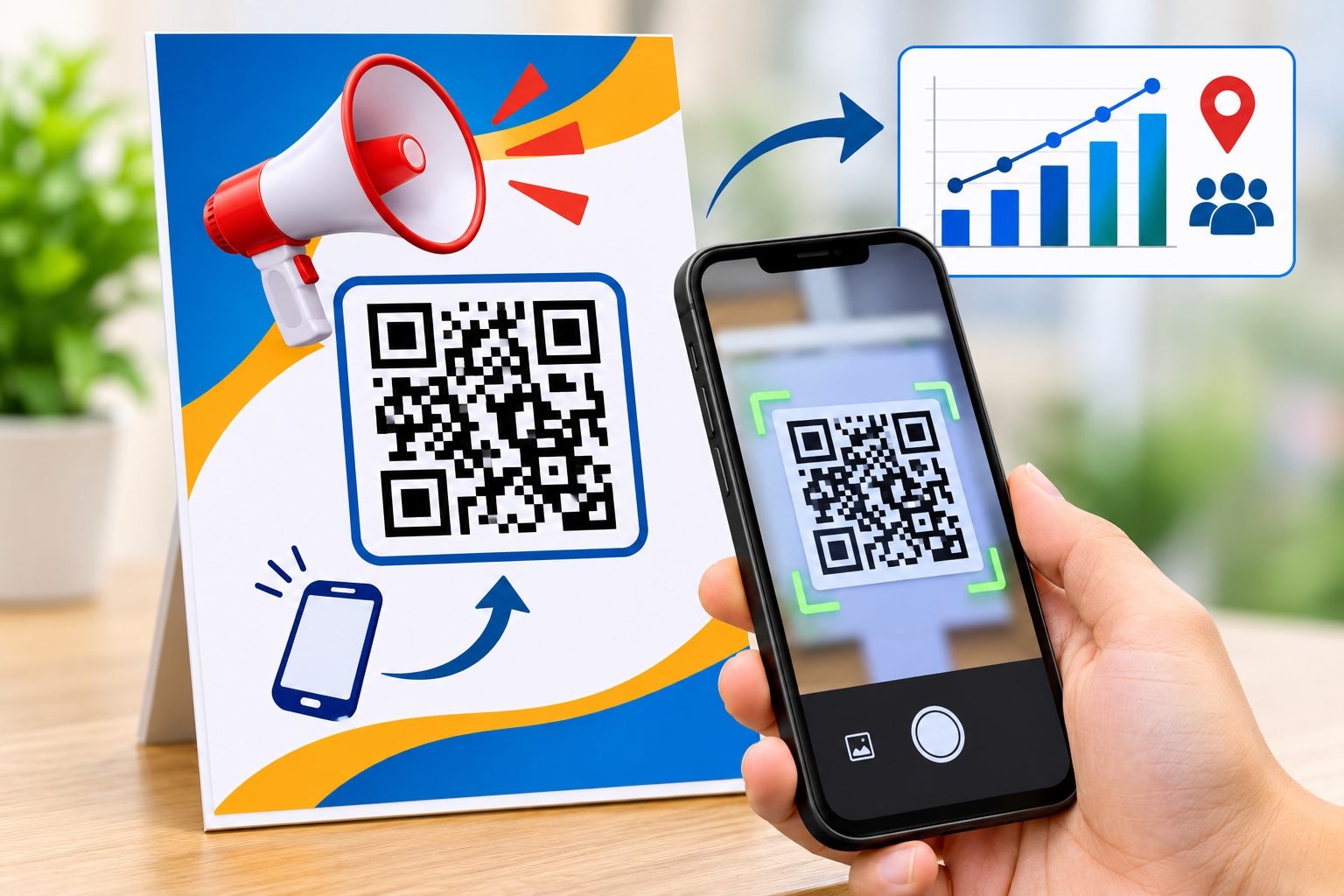
A QR code on a flyer or poster gives people a quick way to visit your website, view a menu, or claim an offer. But there’s one problem: a regular QR code won’t tell you where the scans came from. If you put the same code on a café window and a library noticeboard, you’ll know how many people visited your link, but not which placement brought them there.
You can solve this by adding tracking details to your link before turning it into a QR code. With UTM parameters and Google Analytics 4 (GA4), you can see which printed materials are bringing people to your website. Here’s how to set it up without paying for a separate tracking service.
Why plain QR codes leave you guessing
A standard QR code simply directs someone to a URL. It doesn’t automatically identify whether a visitor scanned it from a flyer, poster, business card, or another printed item.
That makes it difficult to compare the performance of different placements. You might have flyers in several locations, but without separate tracking, you can’t tell which ones are attracting attention.
UTM parameters solve this by adding small tracking tags to the end of a URL. When someone visits through that tagged link, GA4 can use the information to identify the campaign source, medium, and content.
Step 1: Build a tagged link with a UTM builder
First, decide what you want to track. Imagine you’re promoting a café with flyers in two locations: a café window and a library noticeboard.
Use PosterMyWall’s UTM builder to add tracking parameters to your website URL. Fill in these fields:
- Website URL: The page visitors should land on, such as your menu or offer page.
- Campaign source: Enter flyer to identify the printed material.
- Campaign medium: Enter print to identify offline advertising.
- Campaign content: Use a different value for each placement, such as cafe-window and library-board.
Generate a separate tagged URL for each location. Keep tags consistent and lowercase, as cafe-window and Cafe-Window may appear as different values in your reports.
Step 2: Turn your tagged links into QR codes
Use PosterMyWall’s QR Code Generator to convert each tagged link into a scannable code.
Generate one code for each location and add it to the relevant flyer or poster. Make sure the code is large, easy to scan, and has enough contrast against the background. Include a clear call to action, such as “Scan to view our menu.” If you’re using the same design for both locations, remember to insert the correct QR code in each version.
Step 3: Find your QR code scans in GA4
Once your flyers are distributed, use Google Analytics 4 (GA4) to check visits from your tagged links.
Go to Reports → Acquisition → Traffic acquisition in GA4. Look for the campaign source and medium to identify traffic tagged as flyer and print.
To compare locations, check the Session manual ad content dimension. It shows values such as cafe-window and library-board. You may need to customize the report to display this dimension.
Compare sessions and engagement metrics to see which placement brings more visitors. Remember, GA4 tracks website visits, not every physical scan. Someone may scan a code but leave before the page loads. Your website must also have GA4 installed and collecting data.
Tips for getting more reliable results
- Use one QR code per placement: This lets you compare locations, even with the same flyer design.
- Keep UTM tags lowercase: Use consistent labels like library-board
- Test before printing: Scan each code to make sure it opens the correct page.
- Choose the right landing page: Link directly to the menu, booking page, or offer featured on your flyer.
- Give people a reason to scan: Use an exclusive offer, discount, or useful information to encourage scans.
Conclusion
A QR code can do more than send people to your website. With UTM tracking, you can see which flyers and posters are bringing visitors to your site and make better decisions about where to advertise next. Set up your tagged links before printing, test each code, and use your GA4 reports to see what’s working.
FAQs
1. What is the difference between a QR code and a UTM link?
A QR code is the scannable image that directs people to a webpage. A UTM link is a URL with tracking parameters that helps analytics tools identify where visitors came from.
2. How can I create a QR code for free?
You can use PosterMyWall’s free QR Code Generator to turn a website link into a scannable code. Add UTM parameters to your link first if you want to track website visits from different placements.
3. Can I track visits from QR codes on my flyers?
Yes. Create UTM-tagged links using PosterMyWall’s UTM builder, generate a QR code for each link, and check the resulting website traffic in Google Analytics 4.





Recent Comments